Picture this: a school coordinator at a Veracross school is organizing a spring field trip for 80 students. She needs signed Veracross permission slips, a $30 trip fee, and emergency contact confirmation from every family, and she needs everything before Friday. Veracross runs everything else at her school, so it seems like the natural place to start. Then she realizes the platform she trusts for attendance, grades, and rostering doesn’t actually handle the full permission-plus-payment workflow in one place. She ends up with a form in Veracross and a payment link in a separate tool. Then comes the spreadsheet to reconcile the two.
That gap is exactly why SignPayGo was built: a native Veracross integration that combines permission forms, legal e-signatures, and payment collection into a single shareable link, with student and family data already pulled from the SIS. Understanding what Veracross actually does for permission forms is the right starting point, because it does cover quite a bit. This guide walks through the native workflow, where it connects to trips and classes, where it hits its limits, and what closes the remaining gaps.
What Veracross handles natively for parent consent forms
Veracross includes a built-in forms feature that many coordinators underuse simply because they don’t know where to find it. Understanding what’s available natively is the right starting point before layering in any additional tools.
How to build and publish a form inside Veracross
The path starts in the Me menu at the top of your Veracross account. Select Forms, then create a new form with a clear title (such as “Field Trip Permission Slip”) and a brief introduction explaining its purpose. From there, you define the audience, whether that’s all parents, a specific grade level, or a defined group, and add your fields: student name, date of birth, emergency contact, authorization text, and any checkboxes or note sections you need. Fields can be marked required, and section headers help organize the form logically for families filling it out.
When publishing, most forms use the Standard security category, which controls who at the school can create, access, and view the form and its responses. Once saved, the form appears in the designated location on the parent-facing portal, ready for families to complete. Administrators can view submitted responses and track completion status through the Respondents view inside Veracross.
Where parents find and complete permission forms in the Family Portal
Parents access forms by logging into the Family or Parent Portal and navigating to their student’s record. Depending on how your school has configured the portal, forms may appear under the student’s name directly or through the Classes and Reports section. Some schools connect health-related consent forms through the Magnus health record link, which ties directly to the student’s health information in Veracross. Submitted data saves immediately to the student’s record in the Veracross database, and administrators can compare responses against their class list to see who has and hasn’t completed the form. The Veracross family hub permissions model gives system administrators fine-grained control over which families can see which forms, worth reviewing during initial setup if certain forms are grade- or program-specific.
Managing Veracross permission slips linked to field trips and travel requests
Connecting a permission form to a specific trip or event is one of the most common questions coordinators ask, and the answer involves a few steps that aren’t immediately obvious inside the platform.
The Weekend Permission Form and how portal links work
Veracross has a built-in travel request workflow that uses the Weekend Permission Form, which allows students or parents to submit absence dates, timeframes, and reasons while the system displays affected classes. To activate this form in the Student or Parent Portal, it must first be enabled in the portal configuration, and then a portal link for the form needs to be added. That second step requires submitting a support case through the VC Community rather than a self-serve settings change, check current VC Community response times, since this can introduce a setup delay that coordinators don’t always anticipate when working against a two-week trip timeline. For other logistics request forms outside the Weekend Permission Form, the system shortcut {system:logistics_request} can be added to the parent portal to create the connection.
Security roles and who controls form access
Veracross uses role-based access to determine who can create, edit, publish, and view permission form responses. Based on Veracross’s role-based security model, roles in Admissions and Enrollment or System Administration are commonly used for publishing forms and viewing submitted data, check your Veracross Community documentation or your system administrator to confirm the exact role assignments for your school. A coordinator with a more limited role may be able to see a form but find she can’t act on responses or pull a completion report, a real bottleneck for anyone managing a deadline-driven trip. If you’re running into access issues, the fastest fix is to ask your Veracross system administrator to review your assigned roles against what the form workflow actually requires. See the Security Role Overview for more detail on common role assignments and permissions.
Where native Veracross permission slips hit their limits
Veracross is widely used by private and independent schools as a full-featured student information system. What follows is an honest description of what the platform was designed to do, and where it intentionally stops.
No built-in payment collection on permission forms
Based on available Veracross documentation, there is no native payment-collection feature built into Veracross permission forms; schools typically handle fees through a separate payment tool or third-party integration. That means a coordinator who needs a signed permission slip and a $30 field trip fee from the same parent is running two separate processes: collecting the digital permission slip in Veracross and the payment somewhere else. Then comes the manual reconciliation of both records before the trip. For 80 families, that reconciliation takes real time. For 200 families, it becomes a serious operational risk if anyone falls through the cracks.
E-signatures and bulk sending gaps
Veracross does not offer legally binding e-signature collection on its native forms as defined under the U.S. ESIGN Act. The platform’s electronic signature functionality is scoped to internal administrative uses, such as authorizing AP transactions, not for collecting parent consent with a full audit trail. There’s also no automated reminder system to follow up with families who haven’t responded, so coordinators have to send manual communications instead. Bulk sending relies on a CSV import through the Veracross Data Importer, which requires a correctly formatted file and some technical familiarity, refer to the Veracross Data Importer documentation for the required template and field specifications. For a coordinator managing a tight deadline, these gaps compound quickly. If you’re evaluating e-signature options specifically for school waivers, see our SignPayGo vs DocuSign comparison for pros and cons in the school context.
How SignPayGo fills those gaps with a native Veracross integration
Once you understand what the native workflow does and doesn’t cover, the SignPayGo integration becomes less of an add-on and more of a natural completion of the workflow you’re already running inside Veracross.
Student and family data flows directly from your SIS
Because SignPayGo integrates natively with Veracross, it pulls student and family data directly from the SIS, no re-entering names, grade levels, emergency contacts, or parent email addresses. When a new student is added in Veracross, they appear in SignPayGo automatically without any manual update. Rosters stay in sync, which means the data you’re working from when you send out forms is always accurate and current. (For specifics on the integration’s sync behavior, refer to the SignPayGo product documentation or contact the team for a walkthrough.)
How SignPayGo improves Veracross permission slips: permission, e-signature, and payment in one link
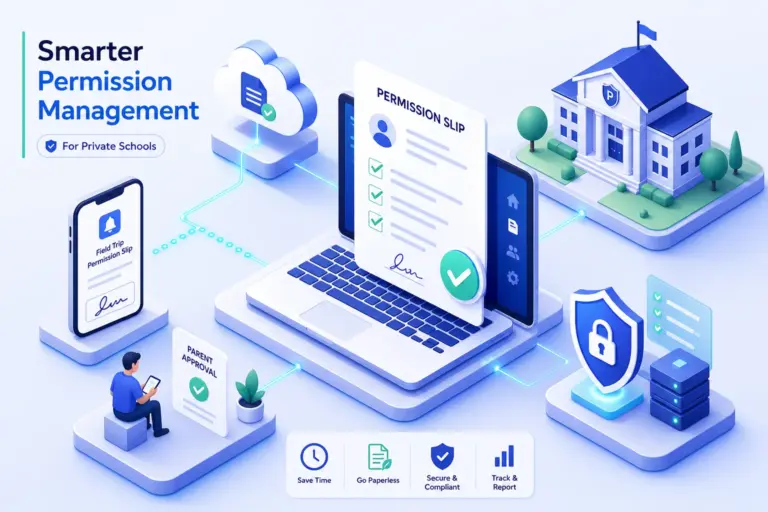
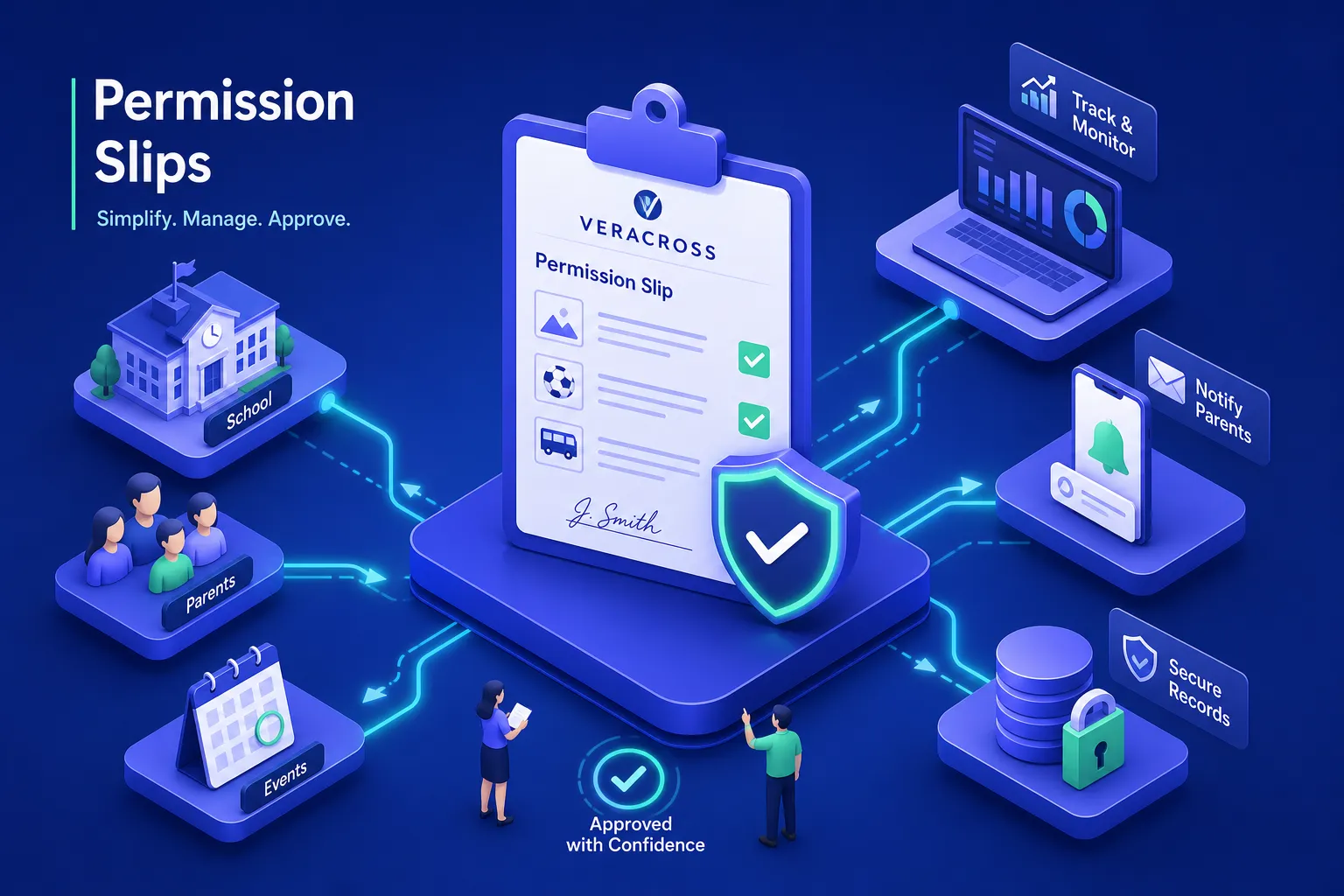
SignPayGo combines the permission form, a legally compliant e-signature, and payment collection into one link that parents open on any device without downloading an app. Automated reminders go out to families who haven’t responded, so coordinators aren’t sending individual follow-up emails the week before a trip. The real-time dashboard shows signature status, payment status, and total collected at a glance. Exportable rosters in CSV or PDF format are ready for day-of logistics the moment you need them. Because everything lives in one place, there’s one data source, one payment record, and one status view, no reconciliation required. Learn more about how this works for secondary-school travel on our High School Field Trip Waivers & Payments page.
The honest picture, and what to do next
Veracross is the right SIS for private and independent schools, and its native forms feature handles basic parent consent collection well. For coordinators who also need e-signatures, trip fee collection, automated reminders, and a real-time completion dashboard inside a single workflow, the native tools leave gaps that require manual workarounds.
If you’re planning trips this season, evaluating how SignPayGo streamlines Veracross permission slips is worth the time, particularly if you’re tired of reconciling forms and payments by hand. The native integration means one place to collect, one place to track, and one link for families. No patchwork of disconnected tools to manage. For private-school policy and payment workflows, see our guide to Private School Permission Slips & Payments.
If you’re heading into a new field trip season or planning summer program enrollment, now is a good time to see how the integration works in practice. Try SignPayGo or learn more about the Veracross integration before the next deadline lands on your desk.